Copy an orders file and verify its contents
Copy a CSV to a separate directory and verify contents, hashes and source preservation.
Audience and outcome
For users delivering files such as CSV reports, with integrity, source retention and existing-target handling.
Before you start
Complete the shared preparation, then prepare the resources below.
| Resource | Requirement |
|---|---|
| Directories | Two new directories on the executing Worker for LOCAL source and target roots; the target starts empty. |
Configuration
| Field / setting | Example value |
|---|---|
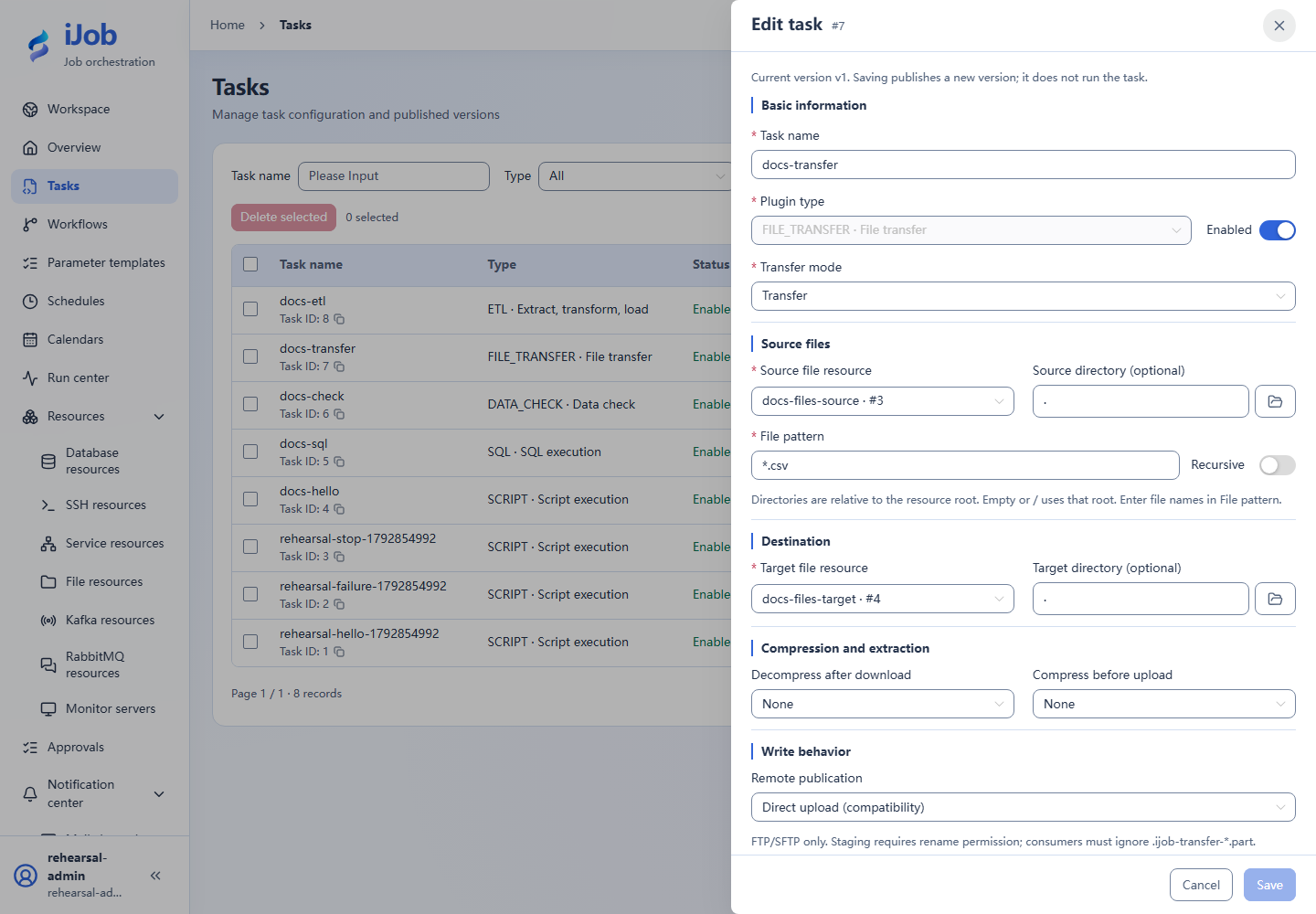
| Source / target path | . / . |
| Pattern / recursion | *.csv / disabled |
| First copy: overwrite / delete source | Enabled / disabled; target starts empty |
Steps
1. Prepare the CSV and resources
Save UTF-8 orders.csv in the source directory:
id,amount
1,100
2,200
3,300
Create two LOCAL file resources rooted at the source and target directories on the execution node.
2. Configure and publish the transfer
Create FILE_TRANSFER using the two resources and the relative paths/options in the table. Save/publish and run manually.
3. Check actual files
Expect orders.csv in the target and the source still present. Use Get-FileHash -Algorithm SHA256 on Windows or sha256sum on Linux for both files. Compare hashes and inspect the target header plus three data rows.
4. Check existing-target behavior
Keep the target file, change overwrite to false, save/publish and run again. Expect SUCCESS with fileTransfer.uploadedFileCount=0 and fileTransfer.skippedFileCount=1; the target hash is unchanged and the source remains. Success here means a configured skip, not a second upload.
Use separate directory copies to try replacement or archiving, then check the resulting contents.
5. Optional: use a remote protocol
SFTP, FTP or S3-compatible resources require dedicated accounts and paths/buckets. Repeat copying, read-back hashes and permission checks with those resources.
SFTP delivery extension
Prepare the restricted Linux account, verified host key and writable directory from the SSH tutorial. Add an SFTP file resource using your own host, port, account, private-key file path and host key. Set its root to the dedicated writable directory and test the connection.
| Field / setting | Value for this example |
|---|---|
| Source resource / path | The earlier LOCAL resource / . |
| Target resource / path | The new SFTP resource / delivery |
| Match / recursive | *.csv / off |
| Remote publish mode | Temporary file followed by rename (TEMP_RENAME) |
| Overwrite / delete source | On / off; remote destination initially empty |
Run the task, then read back delivery/orders.csv over the trusted SFTP session or run sha256sum remotely. Its SHA-256 and three order rows must match the source, which remains in place. Rename support depends on the server and directory permissions. This path uses Ubuntu 24.04 / OpenSSH; FTP, S3, permission rejection, large files and archive behavior require separate exercises.
Expected results
| Check | Expected value |
|---|---|
| Target contents | One orders.csv with matching header and 3 data rows |
| Integrity and source retention | Matching SHA-256; source still exists |
| First copy | uploadedFileCount=1, skippedFileCount=0 |
| Existing target with overwrite=false | SUCCESS, uploadedFileCount=0, skippedFileCount=1; target hash unchanged |
Common failures
| Symptom | Action |
|---|---|
| Target already exists | Review overwrite policy rather than enabling source deletion or overwrite merely to get success. |
| Remote denial | Check resource identity and directory/bucket permissions; saving configuration is not successful transfer. |
Safety and cleanup
Remove only the tutorial-created directories/resources once no longer needed, preserving unrelated files.
Version and limitations
Applies to 1.0.0 LOCAL-to-LOCAL and LOCAL-to-SFTP copying, SHA-256 checks and skipping an existing local target. The SFTP path uses Ubuntu 24.04 / OpenSSH and temporary-file rename. SUCCESS can mean a configured skip; inspect upload/skip counts. FTP, S3, replacing existing contents, archives and large files are separate extensions.
Interface reference
These are actual interface references for this capability. Names and instance IDs may differ from your run; follow the steps and expected results for extensions.