
Quick start: from a task to a workflow
Prepare
Read the core concepts, then follow installation and initialization to start an independent instance. Use the ADMIN account you created to complete this chapter. OPERATOR can execute existing definitions but cannot create tasks; VIEWER cannot execute. Confirm an eligible Worker in the dashboard. The example does not access business systems.
1. Create and save a script task
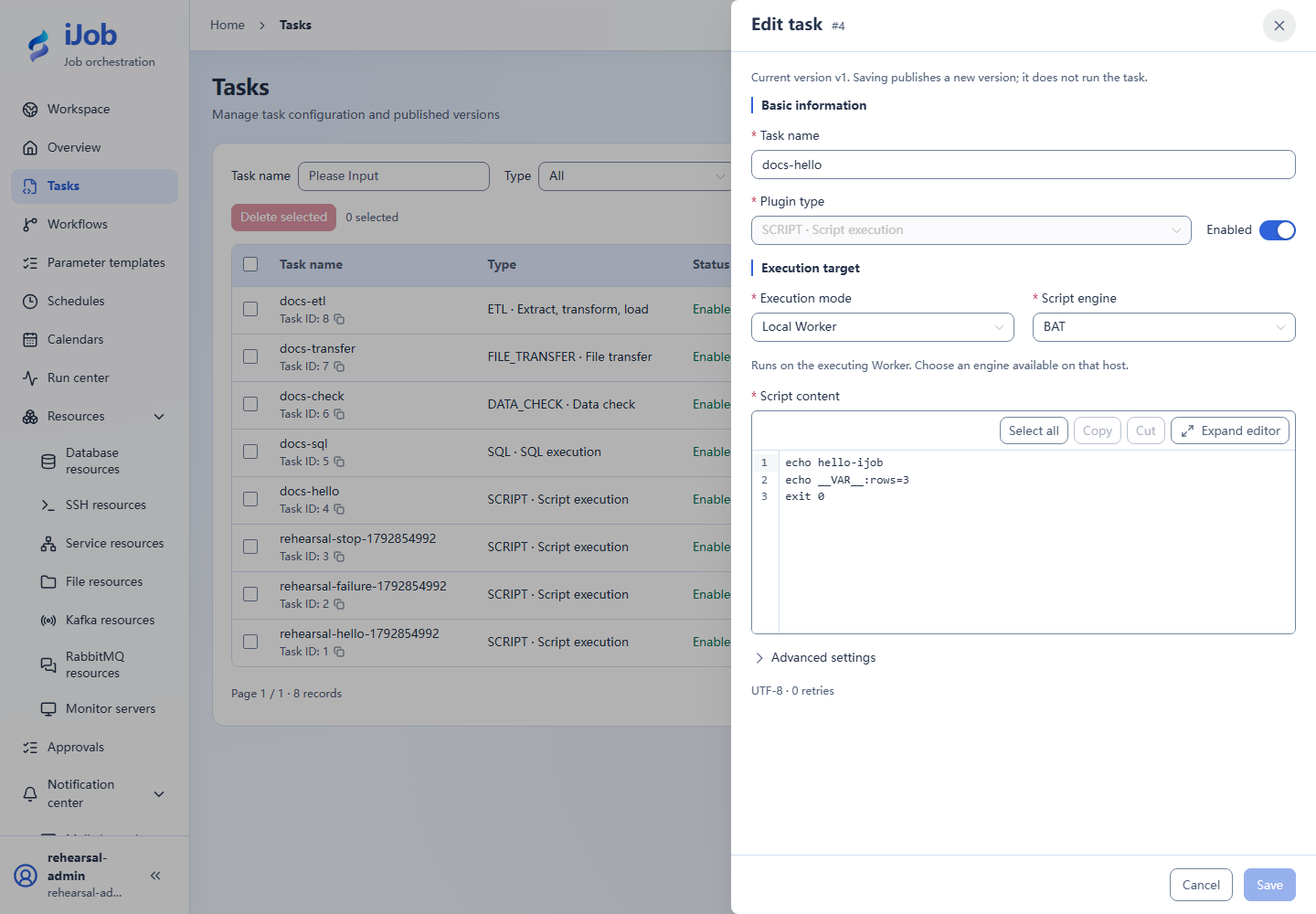
Tasks → New: name docs-hello, plugin SCRIPT, execution LOCAL. Choose BAT on Windows or SHELL on Linux. For this example, set 0 retries, a retry interval of 1 second and a timeout of 60 seconds; initially leave groups unrestricted.
echo hello-ijob
echo __VAR__:rows=3
exit 0
Saving publishes the first version and does not run the task. This real screenshot uses Windows BAT; select the matching engine on Linux.
2. Run and inspect the result
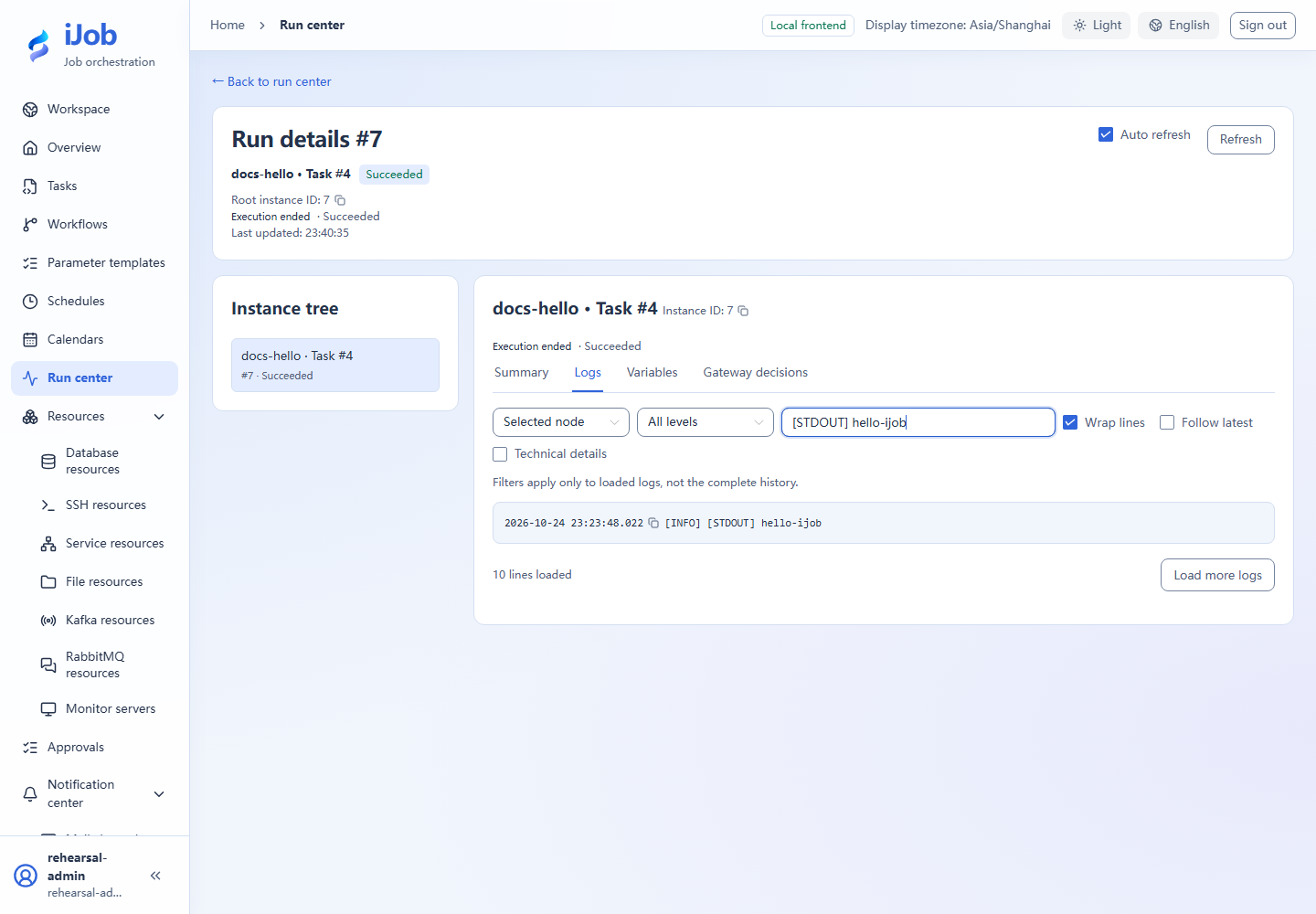
Click Run and confirm the parameter dialog. After trigger acceptance, open Run center → Instances and this docs-hello instance. Expect SUCCESS and [STDOUT] hello-ijob in Logs. Verify that output rows is the string "3" in Variables; the declaration value is redacted in logs. stdout/stderr are recorded with size bounds, not as file-output storage.
The screenshot uses the UI search to show the hello output; complete logs are retained.
3. Compose a two-node workflow
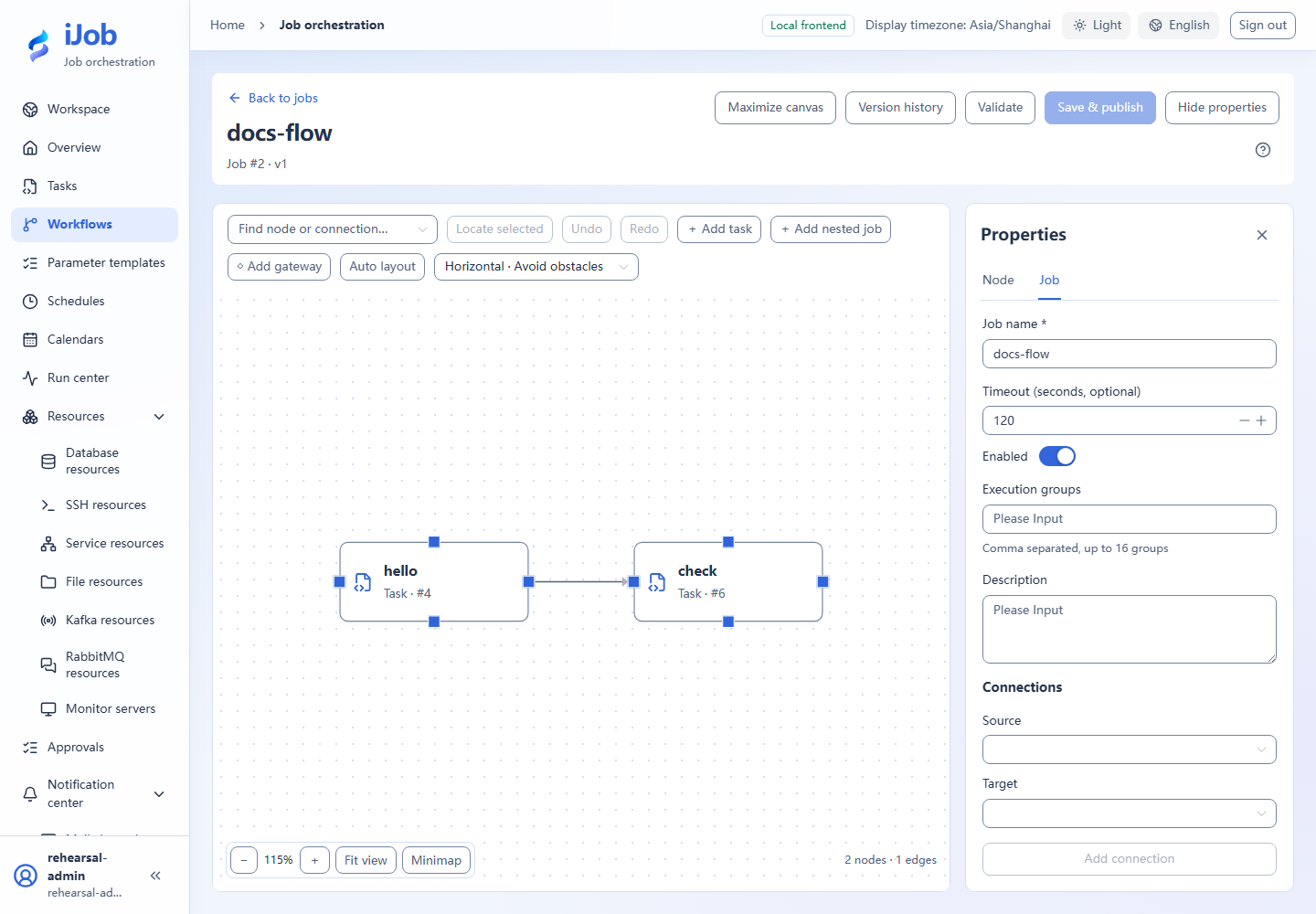
This script alone is sufficient: create docs-flow, add first/second task nodes both referencing docs-hello, connect first→second and use ALL_SUCCESS/STOP. Validate, save/publish, review reference versions and run.
The screenshot uses the advanced hello→check example, whose second node is DATA_CHECK with an independently configured database. For this basic walkthrough, select docs-hello again; canvas/dependency operations are the same.
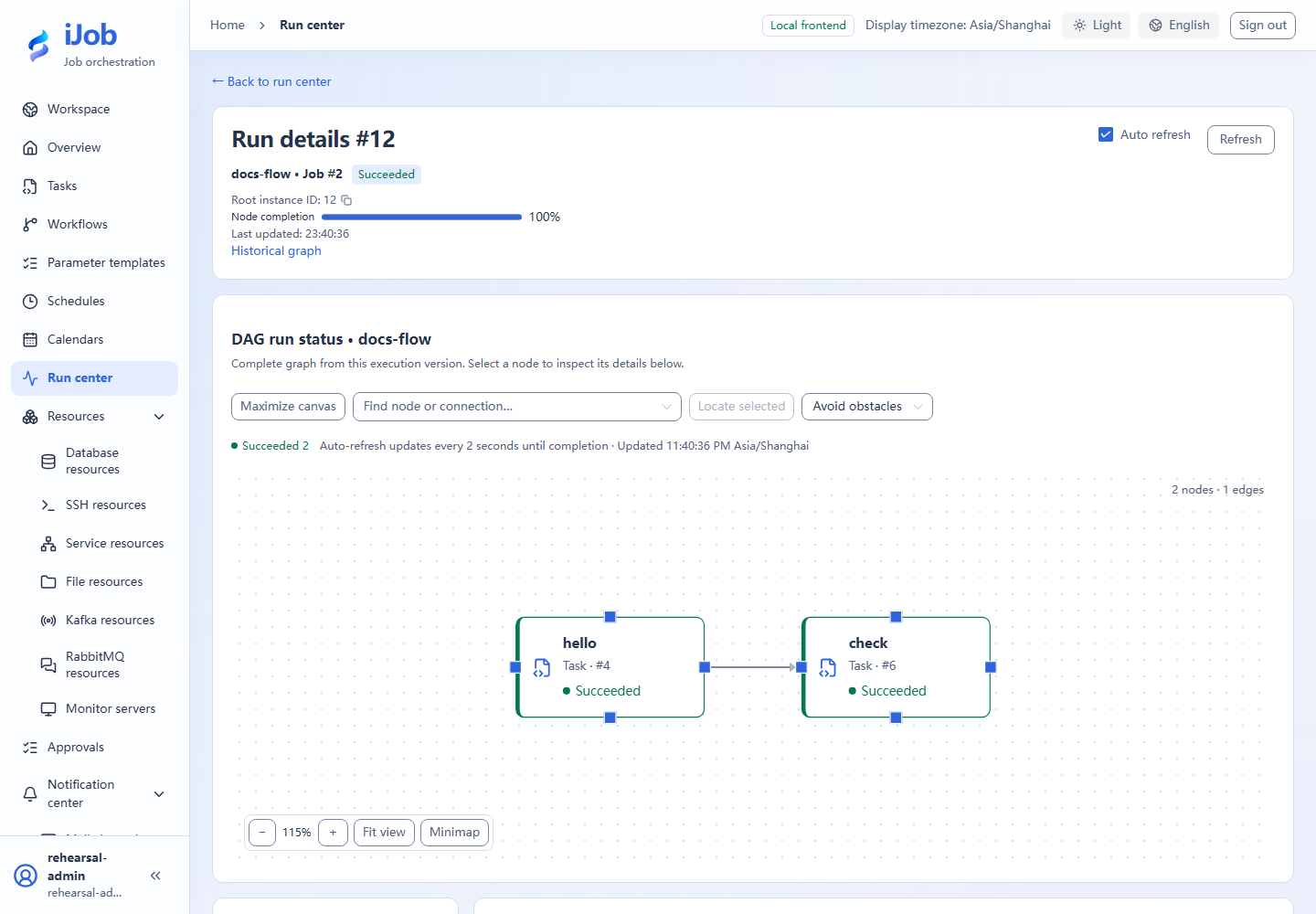
Inspect the run graph and confirm ordered completion. Later child-task updates do not change existing published job references; republish the job to adopt new versions.
4. Preview scheduling
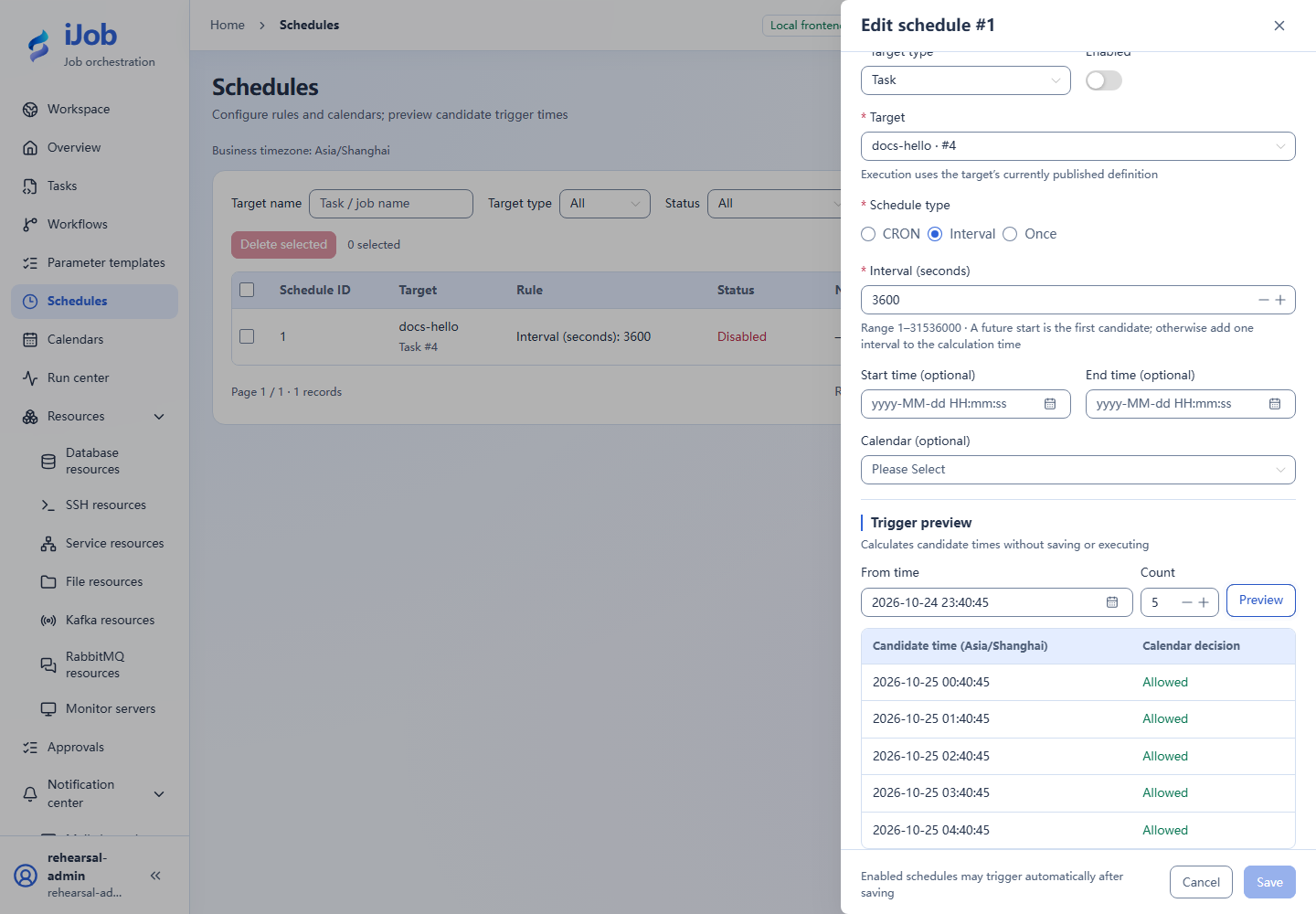
Schedules → New: TASK/docs-hello, INTERVAL=3600, disabled. Preview five future candidates and check business time zone. Preview neither saves nor executes. Enable only when ready, verify a real trigger/instance, then disable the practice schedule. See Schedules.
Completion check
You should now distinguish publication, trigger acceptance, execution instances and business outcomes. Continue with Page reference or Scenarios. Use platform lifecycle commands to stop; do not delete the database to reset an exercise.